Convert HEIC photos to JPG in bulk without losing dates or quality
Convert ten HEIC files in one run and verify each JPG against the original capture timestamp and image.
Convert the whole folder to a separate destination, pass each source’s EXIF bytes explicitly to the JPEG encoder, then reopen every finished JPG and compare its DateTimeOriginal with the corresponding HEIC. Use a consistent quality setting and inspect detail in representative decoded image pairs. The practice batch contains ten genuine HEIC files, all of which became readable JPGs with the original capture date and dimensions. A control saved from the same pixels without an EXIF copy lost the date. The saved checks compare the actual image totals and per-image pixel differences, so you can decide whether the copies meet your purpose.
What to look for
Use this guide when a whole folder of HEIC still images needs a JPEG counterpart per file, especially if a client or catalog relies on embedded capture timestamps. A conversion can finish without an error while dates disappear, files overwrite each other or one file silently stays in the original format. Reopening the outputs and matching them to inputs catches those defects before the batch is considered finished.
Some people first notice the problem because converted files all show the day they ran the export. A filesystem creation or modification date usually describes the copy on disk. The EXIF capture field is a separate value stored in the image data. Decide which field the receiving workflow uses before you try to reconstruct a camera date. This walkthrough checks DateTimeOriginal. A folder with missing capture metadata needs a record of the missing fields.
Why it happens
Before you begin
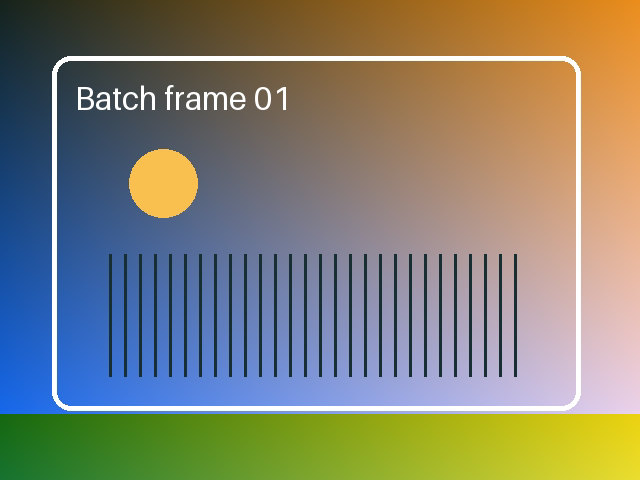
Download heic-inputs.zip and extract it to a source folder if you want to repeat the test. It contains session-01.heic through session-10.heic. They are generated still images, encoded with x265 as HEIC and identified as image/heic from their contents. Each opens at 640 × 480 and has its own DateTimeOriginal. Fine bars, bordered shapes and gradients make the reopened pairs practical to inspect. The second ZIP contains the saved JPGs. The per-file conversion checks list names, bytes, digests, both dates and RGB differences.
Keep the source folder untouched and prepare a new, empty destination. Check for colliding output names before converting, for example two items with the same stem coming from different folders. Preserve folder structure or choose distinct stems so each source has exactly one output name. A consistent list of expected names lets you find any omissions after a conversion.
The tested Python environment uses Pillow and pillow-heif. Install those packages for your local Python interpreter if needed and register the HEIF opener in the script. The lab reads the genuine source and writes a new JPEG. Converting meaningful image data is separate from changing a filename extension. JPEG is lossy, so keep the HEIC master for future edits, and choose the delivery quality from an actual trial.
Steps
Inventory the input set.
Generate a sorted list of paths you intend to convert. Make a table that pairs each input name with the exact output name and include the dimensions and capture field you will check later. With the practice folder you should have ten distinct HEIC names paired with ten distinct JPG names. Match case-insensitively when the destination filesystem treats names that way. If a converted name already exists, resolve the conflict while the outputs are still separate from the input originals.
- Open representative sources and read their detected format and capture field, then run those checks across the full set.
- The lab checks both the HEIF decoder’s reported format and the image/heic signature via pillow-heif.
- For a collection that contains different kinds of HEIF item, inspect which images the decoder opens.
- The supplied examples each hold one intended still image and one capture value.
Export in a repeatable loop with explicit EXIF.
After the opener is registered, open each input, convert the decoded frame to RGB and pass the original EXIF byte string to the JPEG save call. The tested options were quality 86, optimize enabled and chroma subsampling disabled. Here is the essential loop for a flat extracted sample folder. Create the output folder first and use fresh paths. The exclusive file open prevents replacing an already saved copy.
from pathlib import Path from PIL import Image from pillow_heif import register_heif_opener
- register_heif_opener() source_folder, output_folder = Path(“heic-inputs”), Path(“jpg-output”) output_folder.mkdir(exist_ok=True) for path in sorted(source_folder.glob(“*.heic”)): with Image.open(path) as source: exif = source.info[“exif”] output = output_folder / (path.stem + “.jpg”) with output.open(“xb”) as stream: source.convert(“RGB”).save( stream, “JPEG”, quality=86, optimize=True, subsampling=0, exif=exif, )
- For files without EXIF, decide whether they should remain outside the first run or be written with a documented missing date. - The sample loop expects EXIF and stops if it is missing. - In your own batch, record decode failures or files with unexpected geometry next to their input names. - Inspect those entries and reconcile the total before releasing the set.-
Read the capture date back from every output.
Reopen each produced file as JPEG. Read DateTimeOriginal from the nested EXIF IFD, alongside the same field from that input. In Pillow use getexif(), then get_ifd(ExifTags.IFD.Exif), then look up ExifTags.Base.DateTimeOriginal. Compare the whole returned value against its source. A missing or mismatched value needs review even if your file manager shows a plausible date.
- For the first practice image the source and explicit copy both store 2026:10:01 09:15:01. The default export control uses the same image and settings with the EXIF argument omitted. The reopened control has no DateTimeOriginal. Explicit copying explains the difference in this test. The values are sample capture timestamps and have no separate time zone data.
Inspect quality with the source and copy at the same scale.
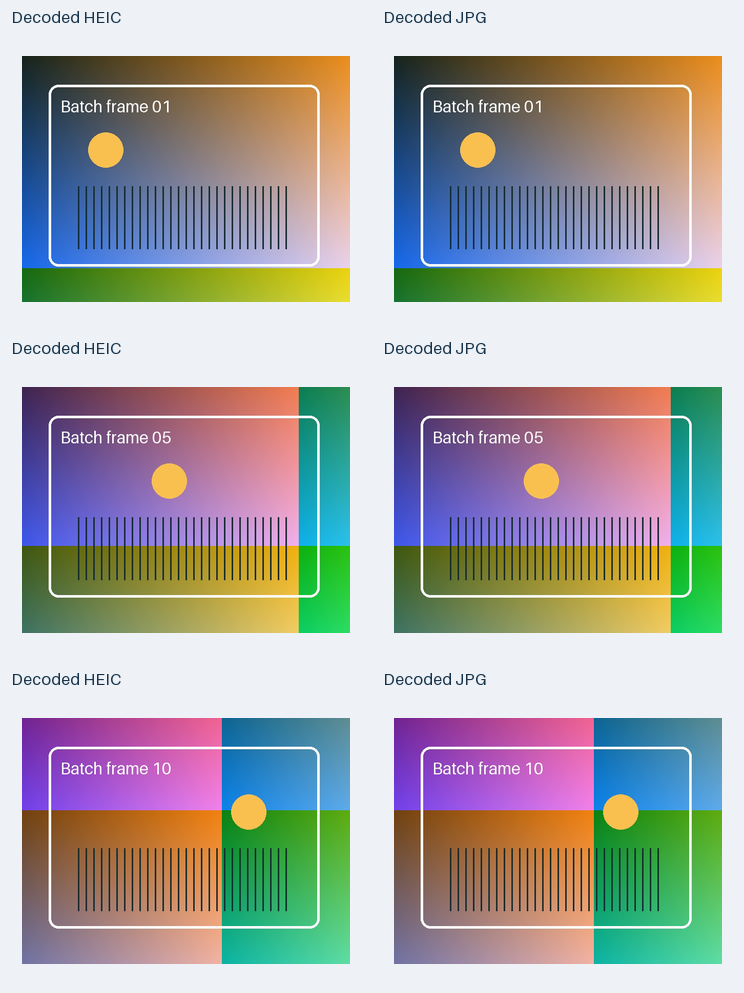
Compare a representative pair at a useful zoom. Use details such as a thin edge or a smooth gradient to find effects that a thumbnail can conceal. In the supplied comparison, reopened frames 01, 05 and 10 illustrate the visible text, bars and edges. The script also compares all ten matched decoded RGB pairs at the same dimensions. The first image’s mean absolute channel differences were 0.8912, 0.6859 and 1.1574. These channel differences demonstrate a lossy conversion while the lines and labels in the comparison remain legible.
- Choose quality for the type of work being delivered.
- Look closely at images with fine textures or gradients before applying the chosen setting to a mixed folder.
- When you try another quality, export again from the HEIC sources and reassess the resulting images.
- Save a given source to JPG only once per chosen version so prior JPEG encoding does not accumulate in your comparison.
Reconcile input and output totals.
Generate a row for every matched pair and confirm there are no unmatched names. Sum the sizes of the individual images on each side. In this run the HEICs totaled 483,652 bytes and the JPGs totaled 425,005 bytes. Those values are the member file totals. The downloadable ZIPs have their own sizes and compression overhead. Use the manifest to identify any individual output you need to reassess. The practical outcome is one openable JPEG per expected source, with dates checked separately from bytes.
- Keep a conversion record with the named outputs.
- A destination may index image metadata after syncing or uploading.
- If your downstream workflow depends on capture dates, test the field it actually reads using one of the completed JPGs before discarding any temporary working copy.
Check your result
The lab reopened every HEIC and JPG from the two saved archives and checked the true file types, corresponding names and dimensions. Each pair had the same DateTimeOriginal. When the EXIF argument was omitted from the control export, the reopened file lacked the field. The measurement record contains the member sizes and SHA-256 digests, while the CSV provides the same pairing in a form you can sort or filter. Byte totals were computed from the sizes of the encoded image files read from the two ZIPs.
For your own files, compare the names before looking at quality and check dates individually. A single matching timestamp is only evidence for that item. After all dates pass, inspect enough reopened image pairs to reflect the types of scene in the batch. Keep the original set when embedded metadata, auxiliary images or maximum editing quality are important.
| HEIC | JPG | HEIC bytes | JPG bytes | DateTimeOriginal in both files | Mean absolute RGB |
|---|---|---|---|---|---|
| session-01.heic | session-01.jpg | 47887 | 38105 | 2026:10:01 09:15:01 | 0.8912 / 0.6859 / 1.1574 |
| session-02.heic | session-02.jpg | 46465 | 40987 | 2026:10:02 09:15:02 | 0.9419 / 0.7258 / 1.2141 |
| session-03.heic | session-03.jpg | 48699 | 40863 | 2026:10:03 09:15:03 | 0.9194 / 0.7157 / 1.2425 |
| session-04.heic | session-04.jpg | 48304 | 41045 | 2026:10:04 09:15:04 | 0.922 / 0.715 / 1.2182 |
| session-05.heic | session-05.jpg | 49489 | 44116 | 2026:10:05 09:15:05 | 0.9931 / 0.7551 / 1.2724 |
| session-06.heic | session-06.jpg | 49528 | 44649 | 2026:10:06 09:15:06 | 1.0073 / 0.7597 / 1.2855 |
| session-07.heic | session-07.jpg | 50474 | 43600 | 2026:10:07 09:15:07 | 0.9834 / 0.7381 / 1.2903 |
| session-08.heic | session-08.jpg | 46993 | 42943 | 2026:10:08 09:15:08 | 0.9949 / 0.722 / 1.2592 |
| session-09.heic | session-09.jpg | 48107 | 44276 | 2026:10:09 09:15:09 | 1.064 / 0.7287 / 1.2795 |
| session-10.heic | session-10.jpg | 47706 | 44421 | 2026:10:10 09:15:10 | 1.0637 / 0.7644 / 1.2824 |
Common mistakes
Relying on the default JPEG save call to copy capture metadata. Explicitly pass the source EXIF bytes and read the date again from the saved output.
Checking dates in the file manager only. Inspect DateTimeOriginal from the reopened image and compare against its source value.
Sending several sources to the same destination stem. Build an inventory first and check for output collisions before writing the batch.
Expecting identical decoded pixels after lossy JPEG encoding. Measure differences and inspect the details important to the destination.
Limitations
The examples are synthetic still images with capture EXIF, fixed orientation and a single inspected source image per file. This test does not claim to preserve HDR, depth images, animation or every metadata store. When using full EXIF from an actual camera, review any fields you intend to carry forward, such as location. Camera orientation and color from other devices deserve separate checks.
Test record
Tested on 2026-11-23 with Pillow 13.0.0 under Python 3.14.4. The lab used pillow-heif 1.8.1, libheif 1.23.6 and x265 HEVC encoder (4.3+1-e9b8812) to create the genuine HEIC inputs. All ten output JPGs reopened at the source dimensions and retained the source DateTimeOriginal. The control without explicit EXIF lost the date.
The measurement record lists the local outputs and their SHA-256 digests.
Tested in
Sample files
Questions
Why are the dates different after conversion if the image looks right?
The visible pixels and embedded capture metadata are stored independently. Read the EXIF field in both files and check the settings used to save the JPG.
Can I recover a missing date from a JPEG alone?
The test does not reconstruct missing dates. Use the matching original or another trusted record when the capture value was never present in the output.
Will the JPGs always be smaller?
No fixed size relation follows from the file extension. Compare the actual individual bytes and totals at your chosen settings.
Does a quality setting keep the same pixels?
JPEG is lossy. The report compares reopened RGB values and visible test features so you can assess the quality at those settings.