Keep the PDF pages that matter
Choose physical page positions and verify the order, page count and appearance of the extracted copy.
Write down the physical positions of the pages you need and enter the selection in the order you want the recipient to read, even when the printed page labels use another numbering scheme. In the five-page practice PDF, selecting 2–4 followed by 1 gives four pages with Project outline first and Cover and context last. Save a separate PDF, open it from the download location, and compare its page count and every heading with your intended sequence, because a different order can produce exactly the same count.
What to look for
Use this guide when a reader needs an appendix, a chapter, a few meeting notes, or a compact set of relevant pages from a longer document. A cover or front matter can make the number printed on a page differ from the position shown by the viewer. Entering a familiar printed number can therefore produce a technically valid export containing the wrong material.
Use the sequence check when the file must tell a story in a particular order. It matters when you want an outline before the working notes, when a recipient should see a chart next to its legend, or when the cover belongs at the back of a practice extract. Keep the original for comparison and confirm those relationships in the saved PDF.
Why it happens
A PDF viewer can show a physical page position, a page label, and a number printed in the artwork. Physical positions count the pages stored in the file. Printed numbers are part of the page content. A report can restart its printed numbering after an introduction. The page extractor takes positions in the file, so note them while looking at the actual source.
Order matters too. The practiced selection begins with Project outline and ends with Cover and context. Sorting those positions would bring the cover to the front. Both files would still contain the same pages and the same count. A check of that count alone cannot confirm the reading sequence.
Before you begin
Use project-notes.pdf, the existing practice source in the sample list. It has five pages and is 3,792 bytes. The page headings are Cover and context, Project outline, Working notes, Next steps, and Reference sheet. The headings and the example’s visible physical-page lines let you identify each copied page independently of the viewer’s new position number.
For the exercise, keep the outline, notes and next steps together, then put the cover at the end. Write the physical order as 2, 3, 4, 1. Keep the fifth page in the source and leave it out of the extraction. Save the result under a name that distinguishes it from the original. If your source is protected or signed, resolve what version the recipient is allowed to receive before preparing a separate copy.
Steps
Mark the physical positions in the original.
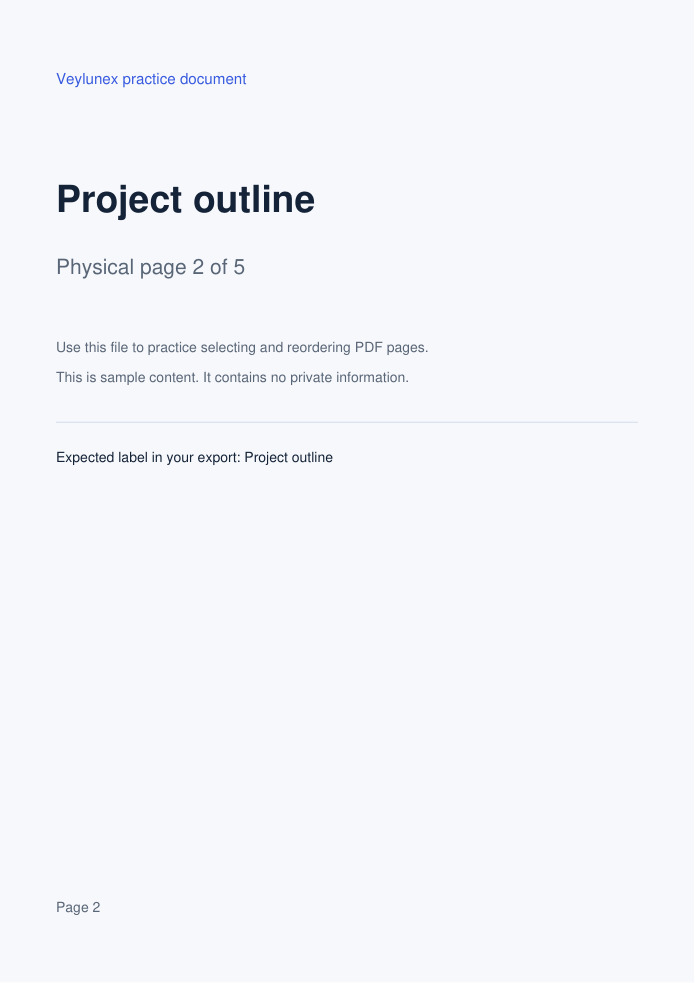
Open the source and move through it using the viewer’s page controls. Confirm which position contains the outline and which contains the cover. Write down the exact title beside each desired position. In this exercise, Project outline is physical page 2 and Cover and context is physical page 1. Writing the pair makes it easier to spot a selection error later.
- For your own PDF, look for front matter or inserted blank pages before relying on a printed number.
- Check the surrounding pages if several headings look alike.
- Select any context the reader needs along with the main material.
- A chart and the text that explains it may be on different physical pages, so treat them as part of the same review.
Enter the selection in the intended reading order.
Open the extractor linked at the end, choose the practice PDF in Choose a PDF, and enter 2-4, 1 in Pages to keep. The range walks forward through outline, notes and next steps. The separate position puts the cover after those pages. Enter individual positions when a section needs to run backwards or in a different order. Keep the written list next to the input field so you can compare the expanded selection with the intended order.
- If the extractor rejects an out-of-range value, return to the source and consult its physical page count.
- Check that you selected the intended revision of the PDF.
- A page count from an older draft can lead you to request a page that is absent from the file you actually uploaded.
Produce a separate export and keep the intended order explicit.
Use Extract pages and then Download result. Save the output in a location you can find without replacing the source. Check the selection summary before opening the file. In our local PyMuPDF run, we opened the same practice source, passed the corresponding zero-based positions to its selection method, and saved a fresh PDF. That run produced project-notes-pages-2-3-4-1.pdf in the sample list. The page count is four and its byte size is 3,576.
- An earlier browser-tool export is shown with the reference example.
- In this batch we reopened that artifact too and matched its ordered page renders to the same source.
- Use a page check rather than expecting the browser and the local PDF library to write identical container bytes.
Inspect every page and reproduce the wrong-order check.
Open the new PDF and read its headings from first to last. Expect Project outline, Working notes, Next steps, then Cover and context. The copied line Physical page 2 of 5 can still be printed on the first output page. The viewer now counts it as the first page of the new PDF. Use the heading and the original printed mark together to identify what you kept.
- pdf**, made from the same source by sorting the desired positions before saving.
- It begins with the cover and ends with Next steps, yet it still has four pages.
- This is a practical rehearsal for the most misleading failure in the workflow.
- Compare the output to your written reading order and correct any mismatch by re-exporting from the original.
Review the exported copy for delivery.
Check orientation, readability at your normal viewing size, text searches and any links that the reader needs. Look for missing diagrams or unintended blank page content. Rename the final output so its scope makes sense to the person opening it. Attach that exact file and keep the source until the recipient confirms the delivery.
- If the extracted document has a form, signature, or navigation that another process depends on, use a workflow that accounts for those requirements and test them separately.
- Page selection is useful for assembling a straightforward reading copy.
- Use a separate review for material that must be removed within a page or for a scanned document that needs searchable text.
Check your result
Compare counts, order and appearance as separate checks. The source has five pages. The desired extract has four and leaves out Reference sheet. Identify each output page by its visible heading or the copied source marker. The verification table records each output position and the source position it matched.
In the lab, we extracted each page’s text and compared its rotation and rendered-pixel digest with the corresponding source page. The desired export matched 2, 3, 4, 1. The wrong-order export matched 1, 2, 3, 4 and measured 3,577 bytes. The earlier browser export measured 3,176 bytes and matched the same desired page sequence. File size helps identify the artifact from the test. Use the page comparisons to decide whether the content and order are correct.
Compare the two outcomes by downloading the wrong-order PDF alongside the desired extract in the sample list. Check their first and last headings side by side.
| Output position | Source position | Source heading |
|---|---|---|
| 1 | 2 | Project outline |
| 2 | 3 | Working notes |
| 3 | 4 | Next steps |
| 4 | 1 | Cover and context |
Check an actual page extraction
Created with this site’s tool in Chrome 156.0.8078.74 on . Download the files to inspect the result yourself.
The source has 5 pages. Enter 2-4, 1 in the page extractor. The downloaded copy has 4 pages in this order:
- Source page 2
- Source page 3
- Source page 4
- Source page 1
The first output page is the source’s “Project outline”; the cover comes last. We checked the exported page count and matched each copied page with the selected source page. Open both PDFs to check the reading order and appearance.
This sample demonstrates page selection, not redaction, compression or preservation of digital signatures.
Common mistakes
Using printed page labels as the input. Find the physical position in the viewer, then note a visible heading to confirm the page after extraction.
Sorting the list before exporting. Preserve the requested sequence. We reproduced an export whose page count was correct but whose first page became the cover.
Checking the preview and attaching a different file. Open the file from its final saved location and review its heading sequence and filename before sending.
Assuming the copied pages preserve a document-level feature. Open the output and exercise the links or forms the recipient will use. Confirm any signature requirement with the receiving workflow.
Limitations
The sample verifies selected page content and order in a plain practice PDF. Separate checks are needed for confidential or hidden content, bookmarks, forms and signatures. Use a smaller working document if the local device cannot handle the source, and check the extractor’s current file and page limits before importing.
Test record
Tested on 2026-11-23 with PyMuPDF 2.1 under Python 3.14.4. The 5-page source produced a 4-page extract in physical order 2, 3, 4, 1. Its size was 3,576 bytes. The sorted selection reproduced a cover-first error at the same page count.
The measurement record lists the local outputs and their SHA-256 digests.
Tested in
Questions
Can the cover come after the notes?
Yes. Specify the physical positions in that order. In the sample, the outline, working notes and next steps precede the cover in the desired export. Check the first and last titles to confirm that placement.
Why does a printed marker still mention the source document?
It is content on the copied page. The viewer reads the new file’s physical positions while the original text remains. Match the visible source marker and heading to your intended selection during review.
Can file size tell which extraction is correct?
Measure it for delivery and identifying a known artifact. In our sample both orders produce four pages and very similar sizes. A comparison of the page headings in output order resolves which one matches the request.
Will picking a page subset remove private material on those pages?
Review every retained page and its associated data for confidential material. Page selection drops pages that are outside the selection. If information inside a retained page needs to be removed, use a process that removes that content and verify the result.