Rotate and reorder a scanned PDF before you send it
Correct sideways and misplaced scan pages and verify the saved sequence with a rendered comparison.
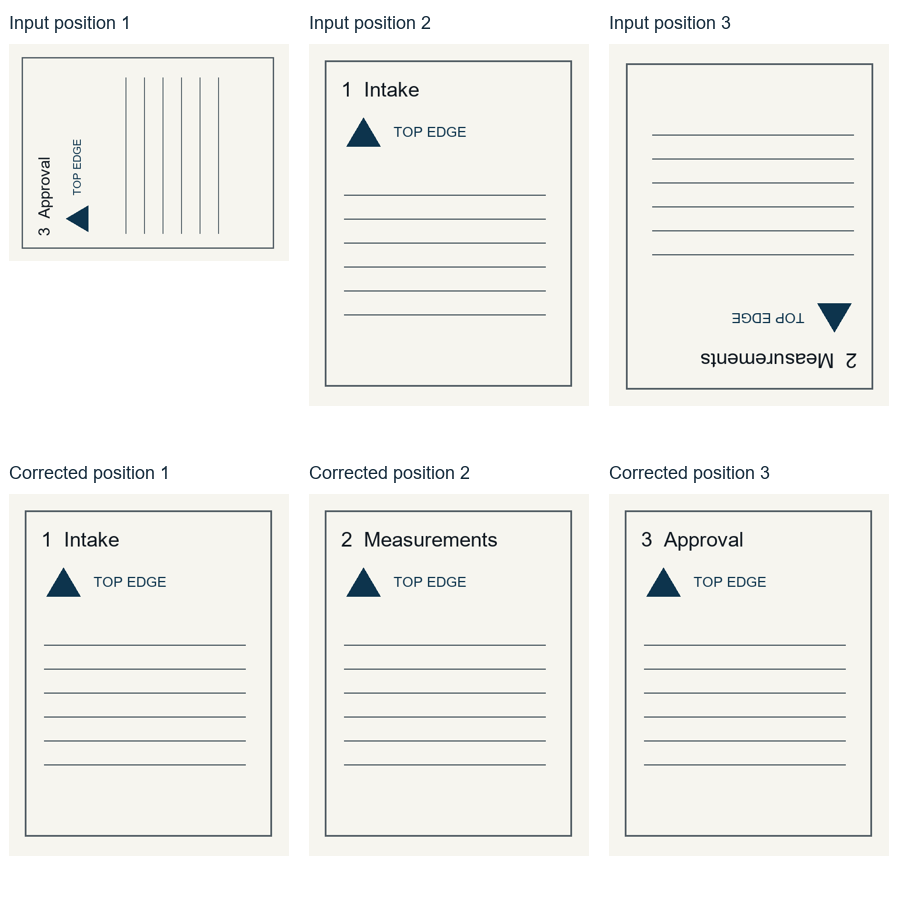
Save a working copy and identify each scanned page by its visible heading or original folio. Apply persistent rotation to the pages that need it, put the pages in the intended reading order, then close and reopen the exported PDF to verify the sequence and orientation. In the downloadable example the input opens as Approval, Intake, then Measurements, with two images sideways or upside down. The corrected PDF opens as Intake, Measurements, then Approval. Each corrected page also matched an independently generated upright image at the rendering settings used for the test.
What to look for
This guide fits a scan with the right pages in the wrong order or text that appears sideways when a recipient opens the file. These problems can happen together when loose sheets are loaded in mixed orientations. If the preview looks correct only after you rotate the viewer, reopen a new copy to see whether those changes were saved to the file. If all pages face the right way but the form starts on its signature page, inspect the order by reading headings as well as looking at thumbnails.
The method works through a short page map. It is useful when a recipient needs to read a continuous packet or refer back to physical pages in a review. For a packet with missing or cut-off images, locate the original sheets and inspect the scan separately. The sequence and orientation steps here can only work with pages that are in the source.
Why it happens
Before you begin
Download scan-out-of-order.pdf. Its three pages are deliberate scan-like images with the page number, a heading, a direction arrow and an asymmetric mark baked into each picture. Source positions read Approval, Intake and Measurements. The Approval raster was turned 90 degrees counterclockwise, Intake was upright and Measurements was turned 180 degrees. There is no selectable text in the sample. The matching output is scan-corrected.pdf.
Keep access to a known sequence, such as the original stack, an approved table of contents or the sender’s list of forms. Make your repair on a copy you can write to. Prepare a short inventory with current PDF position, visible identifier, required turn and desired position. For paperwork with no visible pages numbers, record an unambiguous combination such as a heading and the first distinct form field. This gives you something you can verify after thumbnails move.
An image may have been turned during scanning even when PDF page rotation is initially zero. The sample demonstrates that case. A mismatch between what appears on screen and what the document properties report is a reason to inspect the orientation of the content itself.
Steps
Inventory the original copy.
Open the source where you can see a thumbnail panel and magnify a page far enough to read a heading. Write down what each physical position contains. In the practice PDF, the page at position one is Approval, the second is Intake and the third is Measurements. The visible numbers embedded in the images are three, one and two in that order. Both numbers have a job. The displayed position identifies the file operation and the number on the image helps identify the intended reading sequence.
- Watch for similar pages, such as several sheets whose heading is Measurements.
- Pick a readable identifier and a second feature that distinguishes them.
- If an intentionally blank reverse side matters, include it in the inventory.
- If there is a missing page, stop before trying to approve the packet.
- Ask for the missing source before deciding where the pages should go.
Rotate the right pages and save the instruction.
Select the page whose heading is Approval and apply a clockwise quarter-turn so the arrow and heading face up. Leave Intake upright and apply a half-turn to Measurements. Choose a page editing operation that is carried into the saved document. Some viewers offer a view rotation command that can affect all pages on screen until the tab closes. Use the actual repair function and inspect the affected pages while they are still in their original positions.
- For the supplied sample, PyMuPDF writes the PDF page rotation with
set_rotation. - The values in input order are
90, 0, 180. - On another file that already has a rotation entry, determine the effective view and the additional turn before setting an absolute value.
- Reopening an edited copy is a direct way to test what the recipient will actually see.
- For the supplied sample, PyMuPDF writes the PDF page rotation with
Reorder using the identifiers in the inventory.
Put Intake first, Measurements second and Approval last. The equivalent list of original viewer positions is
2, 3, 1. In PyMuPDF,document.select([1, 2, 0])uses zero-based positions for that input. When using a thumbnail organizer, check that you are moving a page instead of duplicating it. In an interactive editor the position labels change while you move things, so reidentify the page by its heading before the next operation. The last page should be Approval.- Review the entire sequence after the last move.
- If the border of a selected thumbnail makes two adjacent previews hard to tell apart, open those pages or increase the thumbnail size before continuing.
- Swapped adjacent pages can survive a page count check.
- Reading the headings in order is what catches them.
Write a new PDF and check it from disk.
Save the result under a new name such as the provided
scan-corrected.pdf. Close the editor or open the saved file in a fresh window. For every page, check the heading, the orientation of the arrow and whether margins or meaningful markings were clipped. The practice output has the complete sequence and all three arrows point up. You should be able to start on Intake without applying a temporary view rotation.- If the repair is only rotation and reordering, leave any optional image optimization until you know you need it.
- A second export can change visual detail and makes a useful comparison harder.
- If you do optimize, verify the PDF that will actually be sent with the same reading-order and visible-detail checks.
Compare an accessible record and send the checked copy.
Make a small contact sheet or inspection note that lists the heading and orientation of each output page. In the downloadable comparison, the top row comes from the original file and the bottom row from the saved file. The pair makes it easy to inspect order and orientation at once. Open the full pages afterward to read details the thumbnails could hide. In a real delivery, compare the final filename displayed by the upload form or email attachment picker to the one you reopened.
- If the recipient expects searchability, check for actual selectable text.
- The supplied pages are images, so their visible headings do not show up in text extraction.
- Optical character recognition is a separate follow-up.
- After applying OCR, verify that the final visual order still matches the inventory and check the recognized text against the images you will send.
Check your result
The lab reopened both saved sample files and generated the comparison at the same scale. It rendered every output page to raw RGB pixels at 72 DPI and compared those bytes with the corresponding upright raster prepared before making the sample PDF. All three pages matched. The script also checked the output page count and that extraction returned an empty string on each image-only page. The visual contact sheet shows the same three identifiers to anyone reviewing the downloads without a script.
For your scan, record the heading and direction of each page as you read the saved copy. Confirm the page count and then review the page sequence independently. If the pages have narrow text near the edges, inspect those edges at a useful zoom to make sure the important fields are still visible. Use an approved source order for ambiguous packets and keep the checked copy under a distinguishable filename.
| Position | Input heading | Input turn counterclockwise | Output heading |
|---|---|---|---|
| 1 | Approval | 90 | Intake |
| 2 | Intake | 0 | Measurements |
| 3 | Measurements | 180 | Approval |
Common mistakes
Rotating the viewer instead of the PDF page. If a fresh open shows the old orientation, use the page organizer’s persistent rotation and save a separate copy.
Moving a page by its printed number alone. In the sample, the printed number on Approval is three but its original file position is one. Use the map that records both identifiers.
Checking only the page count. The broken scan and corrected scan contain the same number of pages. Compare the actual ordered headings and the orientation of each page.
Treating OCR text as proof of visual orientation. The provided pages contain no text layer. Use the rendered pages to verify actual orientation and check OCR separately if your recipient needs it.
Limitations
The test uses generated raster pages that simulate mixed orientation with clear identifiers. It covers changes in 90-degree increments and a known reading order. It does not address skewed photography, obscured content or determining the correct order of an unfamiliar packet from its images alone.
Test record
Tested on 2026-11-23 with PyMuPDF 2.1 under Python 3.14.4. Image fixtures were generated with Pillow 13.0.0. All three corrected pages matched independent upright reference renders pixel for pixel at 72 DPI.
The measurement record lists the local outputs and their SHA-256 digests.
Tested in
Questions
Why does the thumbnail look fixed while my recipient still sees a sideways scan?
The rotation may be a setting of your open viewer tab. Reopen the saved export in a fresh window and check whether the page edit appears there.
How can I identify two pages with the same heading?
Use a second visible clue such as a folio, a field label followed by a value or the position in the approved paper stack. Check that clue again after moving the page.
Should I adjust rotation before or after reordering?
Either operation can be done separately. This walkthrough rotates in the source order first so that the inventory stays valid until the turns are applied.
Will the corrected scan become searchable?
Reordering and rotating the image-only example leave it image-only. If searchability is required, add OCR as a separate operation and verify its output.