Fix swapped days and months in CSV dates
Choose the source date order from the original records and check the actual dates after re-import.
Read the original date strings as text, find a valid source record with a first or second component that could only be a day, and choose the import order that agrees with that record and the source convention. In the WPS exercise, 13/04/2026 stayed as text under month-first parsing, while 03/04/2026 silently became March 4. Re-import the untouched CSV using day-first order, verify the interpreted date for every sample record, and check the saved values in an unambiguous year-month-day representation.
What to look for
Use this guide when dates look valid in a worksheet but land in the wrong month, or when an export has a mixture of date cells and date-looking text. If an input such as 03/04 could mean either April 3 or March 4, a visible date alone will not show which interpretation the importer picked. Read more than one original record and keep the rows paired with their identities.
The error can be quiet. A month and day may both fit the allowable range, so the application accepts the wrong date. A neighboring date where one field is too large to be a month can expose the import choice. Look for such a row before you sort, summarize or send the table.
Why it happens
A date-looking field in a CSV is text. When a spreadsheet converts it to its date type, the selected order gives meaning to the first two components. A display mask controls how the parsed date is shown. Check the interpretation to see which month and day were actually stored. Date formatting can make the result easier to read after the import has made the correct choice.
Before you begin
Open date-order-input.csv as text. It has three data rows and two columns, record and date. The north row has 03/04/2026. The anchor row has 13/04/2026. The east row has 07/11/2026. The fixture was produced with day before month. For a real export, check its documented order or confirm it with the producer when possible.
Keep the raw input and plan to review the two interpretations as separate copies. If all you can find in an unfamiliar file are ambiguous values, ask the source owner or check them against a known event. A single screenshot of ambiguous dates gives too little information to settle the intended order. The paired outputs below make the effect visible on the same known rows.
Steps
Read the raw fields and record what could be ambiguous.
Use a text editor or a viewer that can keep the date column as text. Note each date next to its record key. The characters 03/04/2026 appear on the north row. Both 03 and 04 can appear as a month number, so either common order can produce a plausible date. The east row has the same ambiguity in a different part of the year.
- Keep the input available through the fix.
- For an export with periods or slashes in its values, verify the delimiter and field boundaries first.
- Then decide which cells need a date interpretation and keep other data aligned with the same record keys.
- This prevents a field-shift problem from looking like a calendar problem.
Reproduce the incorrect month-first conversion.
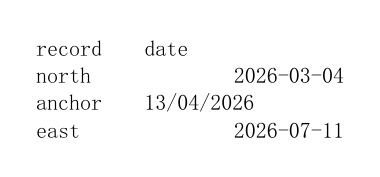
In a working copy, import the strings and apply a Date type with MDY to the date field. We used that field option through the WPS column conversion. With year-month-day display applied afterwards, north became 2026-03-04 and east became 2026-07-11. Both are valid parsed dates under the selected order, even though both differ from the intended day-first dates.
- Inspect anchor separately. In the wrong branch, WPS left 13/04/2026 as a string. It cannot interpret 13 as the month. The row therefore gives a concrete signal even when the nearby values seem valid. Open the wrong-order CSV and check how that unparsed value sits beside the altered dates in the actual export.
Use the unambiguous row and source information to choose the order.
On the anchor row, 13 is a valid day number and 04 fits a month. That supports day-first order for this consistent fixture. Use comparable evidence in your own file. A value outside the month range in either position helps you test a proposed order, and a documented event date can resolve a record that would otherwise be ambiguous.
- Check more than one example when possible.
- If different valid-looking rows imply different source orders, ask the producer how the file was assembled and review mixed sources separately.
- Determine the source convention before changing any values.
- Choosing the order familiar on your device will not settle the meaning of an export that follows a different convention.
Re-import the original with day-first parsing.
Start with a fresh copy of date-order-input.csv. In Excel’s legacy Text Import Wizard, choose the actual delimiter, then select the date column and set its Date order to DMY before completing the import. In the local WPS test we applied the explicit day-first type after loading the original strings. That parsed all three rows as dates with the intended month and day.
- Check the record keys and review north, anchor and east together. Display the resulting dates as year-month-day for an unambiguous review. The tested values were 2026-04-03, 2026-04-13 and 2026-11-07. Anchor should now be a date too. If a field stays as text or an unexpected date appears, return to the corresponding original row and check its format. Excel Text Import Wizard date order
Export and verify the entire sample by record.
Create a separate CSV with the corrected dates and inspect its raw strings. In date-order-fixed-iso.csv each row contains the year-month-day result for the same record key. The local lab read the saved CSV and confirmed the three exact values. Compare them against the input strings using the validated day-first convention.
- For a real file, identify rows with the same or adjacent months, blanks where allowed and values that lack an unambiguous source interpretation.
- Decide with the receiving side how those should be represented before delivery.
- Reopen the exact saved copy in the destination’s workflow and check its interpreted dates too.
- An unambiguous export convention and a recorded source order make this easier to repeat.
Check your result
Compare the table in record order. North becomes March 4 in the MDY branch and April 3 in the DMY branch. East becomes July 11 and November 7 respectively. Anchor stays as text under MDY and becomes April 13 under DMY. Confirm that the correct export contains the three year-month-day strings and compare their records rather than relying on a displayed date format.
If you need to verify a whole sheet, compare the parsed result with trusted source values across every record. Inspect unresolved text cells and dates outside the expected range before relying on a sort or filter. Recheck the saved CSV separately. The lab compared actual raw output fields and verified that no sample row was left with an ambiguous slash-form date in the corrected export.
| Record | Source text | MDY export | DMY export |
|---|---|---|---|
| north | 03/04/2026 | 2026-03-04 | 2026-04-03 |
| anchor | 13/04/2026 | 13/04/2026 | 2026-04-13 |
| east | 07/11/2026 | 2026-07-11 | 2026-11-07 |
Common mistakes
Choosing the date order from one ambiguous value. Look for a source date that can only fit one order and confirm the pattern with the producer or a known event.
Changing the display mask to fix a wrong parse. Re-import the original using its verified order. Then apply an unambiguous display and compare the actual dates.
Ignoring a date-looking string in a date column. Read both stored types and values. In the wrong branch the anchor remained text while other rows became dates.
Fixing only visible anomalies. Repeat the import consistently and check all sample records. Ambiguous values can look plausible in the wrong order.
Limitations
The exercise uses a consistent day-first source with a full year and no time component. For mixed date formats, missing years or data with time zones, confirm the source contract and test each distinct case. Keep the original text if the intended date is uncertain.
Test record
Tested on 2026-11-23 with WPS Spreadsheets 12.1.0.29161 under Windows PowerShell 5.1.22621.2428. Month-first conversion changed two dates and left the anchor as text. Day-first import parsed all three and the saved CSV matched the expected year-month-day strings.
The measurement record lists the local outputs and their SHA-256 digests.
Tested in
Questions
What does 13/04 tell me?
For the consistent sample, the first component must be the day, because 13 cannot be a month. Check the source convention before using that reasoning on a table assembled from different exporters.
Why did some wrong dates still look valid?
Both components fit valid month and day ranges in those rows. The importer could make a date in the wrong order. Compare against a known source date or an unambiguous row.
Can I recover the intended dates from an already converted worksheet?
Start from the raw export or trusted independent records. Establish the intended order before trying to correct a row. Mixed stored types are a useful clue that the import needs review.
What should I save for another application?
Agree on a clear date representation and verify the actual saved values. The practice export uses year-month-day strings, with the original source retained separately for traceability.