Keep leading zeros in CSV identifiers
Compare General and Text handling of codes, then check the leading zeros in the actual CSV download.
Treat an identifier as text during the import if the zeros at the beginning are part of its identity, and use the original CSV if an earlier load has already turned the codes into numbers. The local exercise turned 001, 00790 and 000 into 1, 790 and 0 under General conversion, then kept the exact originals when we chose Text. Export the corrected worksheet to a separate CSV and read its raw fields to verify that each expected zero still appears before giving the file to another person or system.
What to look for
Use this guide when an identifier in your source begins with zeros and a spreadsheet shows it without them. A stock code, postal code or project identifier can look numeric while its characters carry meaning as a label. An imported cell that displays 790 for a code recorded as 00790 may fail to match another system even though the spreadsheet regards both as the same numeric value.
Compare the original CSV text with the worksheet and with any CSV you plan to deliver. This sequence lets you identify whether the change happened during import, during an explicit conversion, or during a later export. If a display format shows zeros in the sheet, the saved field still deserves its own check.
Why it happens
CSV stores values as delimited text. A spreadsheet can interpret a field as a number when it loads or converts that field. A numeric value cannot express how many zeros appeared before its significant digits in the source. Treating a code column as text preserves those characters. This is a typing decision within the import, separate from picking the delimiter that puts the field in the right column.
Before you begin
Use codes-import.csv, which has the fields code and item and three data rows. Alpha is paired with 001, Beta with 00790, and Gamma with 000. The first and last codes contain three characters, and the second contains five. This mixture is useful because a single display width cannot represent all the intended strings merely by padding numeric values to the same length.
Keep the original available when you run the failing conversion and the corrected branch. Our WPS installation opened this CSV with the code strings already intact. To reproduce the change, we explicitly chose General in the column conversion. A separate fresh copy was then processed with Text and exported as a CSV. The Excel procedure uses its documented text-column option. Microsoft guidance on keeping leading zeros
Steps
Read the raw field and decide which columns are identifiers.
Open the original CSV in a plain text viewer. Look up the three records using item so you can check the code of the same item throughout the workflow. Copy the expected strings into a comparison note. When preparing your own file, ask whether leading zeros have to survive for the database, catalog or collector that receives the output.
- Mark only the relevant columns for preservation.
- Measurements and quantities may need numeric behavior, while the code that identifies an item should retain its characters.
- Keep the worksheet’s intended types separate from CSV’s plain text.
- A separate checklist of expected field values makes it easier to validate an import without relying on how a program formats a cell.
Check when the loss occurs.
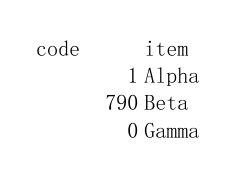
Open the practice file and inspect the code column. On the measured WPS setup, opening it directly yielded strings with their zeros. We then applied Text to Columns with General to those cells, keeping the field together. The stored values changed to the numbers 1, 790 and 0. Saving this branch produced codes-numeric-export.csv, whose raw fields show the shortened values.
- If a different app already infers numbers at open time, the same comparison can show which fields it changed.
- Checking the copied workbook’s values alongside the untouched CSV is more reliable than assuming every install guesses the same type.
- Once you identify the failing stage, keep that file as a comparison and restart the corrected branch from the original source.
Import the code field as Text before accepting any conversion.
In Excel’s Text Import Wizard, choose the actual delimiter, then select the code column in the preview and set its column format to Text before finishing. In a query workflow, check any inferred type conversion before loading and apply Text while the source values still have their original characters. The controls differ by release, so use the preview to confirm what arrives in the worksheet.
- In the local WPS run, we opened the original again and explicitly chose Text for the code column in the column conversion. Each code retained its original string value. Check that the first item remains Alpha beside 001 and that Beta has 00790. Inspect the all-zero code too. When the stored type matters to another workflow, check that the field is still text before saving. Text Import Wizard column formats
Review the import before exporting.
Compare the worksheet values with the raw notes rather than looking at the column as a single group. The practice codes are deliberately different lengths. If the entire column looks uniformly padded after using a custom numeric display format, compare the original and displayed widths one at a time. A visually padded number can hide the fact that the original characters were discarded in a prior step.
- For a real delivery, consider testing more than one kind of code, including an all-zero code if it is valid in your system.
- Check another field on the same row to confirm that it is the correct record.
- If a code has already changed, consult the original source instead of guessing how many characters to insert.
- Only a separately verified convention can determine how to reconstruct a missing prefix.
Export and verify the CSV outside the spreadsheet.
Save a new CSV from the corrected table and open it as plain text or parse it with a CSV reader. In the practice file codes-text-roundtrip.csv, the raw fields for Alpha, Beta and Gamma are still 001, 00790 and 000. The lab parsed the exported rows and compared each code exactly. Use a fresh import if you also want to check how the recipient’s application handles that corrected CSV.
- Check that the field names and item descriptions are still paired with the intended codes.
- If a later opener guesses the type again, repeat the explicit Text import in that workflow.
- The CSV carries the characters, while each receiving importer controls how they are interpreted.
- Send the original-width codes and enough information for the recipient to reproduce the successful import.
Check your result
Use the original CSV, the numeric export and the corrected download as separate checkpoints. Compare codes by item. In the numeric branch, Alpha has 1, Beta has 790 and Gamma has 0. The corrected CSV contains the original strings 001, 00790 and 000. This check captures actual saved fields, including the code whose entire value is made of zeros.
For a table of your own, compare the source and output counts, then verify exact matching strings under the correct header. Match rows by a trusted identifier or compare them in their known order. Look at expected length as an additional check. If you open the export in a spreadsheet for review, set the code column to Text again so that the verification step does not itself introduce the problem.
| Item | Source text | General | Text round trip |
|---|---|---|---|
| Alpha | 001 | 1 | 001 |
| Beta | 00790 | 790 | 00790 |
| Gamma | 000 | 0 | 000 |
Common mistakes
Leaving the code field on General when importing. Select the field in the preview and set Text while the source still carries its original characters.
Applying a fixed-width number format without checking the original. Compare actual code lengths and retain original values as text. The exercise deliberately mixes different widths.
Assuming a worksheet’s appearance proves the CSV field is right. Save a separate output and inspect its raw text. Reopen the actual attachment in the receiving workflow.
Trying to recover a code from a shortened value alone. Go back to the trusted source or a verified code definition. Check each field before retrying the export.
Limitations
The test uses synthetic codes and explicitly observes the General conversion in the measured WPS version. Open behavior and import settings vary by spreadsheet. For a delivery that requires exact codes, verify the raw output as well as the recipient’s import settings.
Test record
Tested on 2026-11-23 with WPS Spreadsheets 12.1.0.29161 under Windows PowerShell 5.1.22621.2428. WPS General conversion stored the shortened numeric values. Explicit Text and a read of the saved CSV confirmed the original strings.
The measurement record lists the local outputs and their SHA-256 digests.
Tested in
Questions
Can a code consist entirely of zeros?
Check the receiving system’s definition. The exercise includes 000 as a valid text code for Gamma. It survived the text branch and became 0 under General, which is why checking such a record is useful.
Does a Text import also change my quantity columns?
Apply Text to the fields that carry identifiers. Choose appropriate types for fields you use in calculations and verify their imported values separately.
Does reopening the corrected CSV guarantee the zeros still display?
The saved CSV can contain the correct strings while another opener interprets them again. Check the raw text, then use the Text option in the receiving import when the codes need exact preservation.
Can I use the same leading-zero width for every field?
Use a fixed width only when it is part of the verified code format. The practice file has distinct widths, so a shared display pad would misrepresent at least one group. Preserve the source’s actual strings.