Fix garbled text in a UTF-8 CSV
Reproduce a wrong code-page read, then recover exact accented and Chinese text from the original.
Go back to the original CSV bytes and open them as UTF-8 when recognizable values such as Café or a Chinese name turn into unrelated symbols, then check the actual characters before saving another copy. For this exercise, adding a UTF-8 byte order mark let the marked copy reopen correctly in WPS, and an independent conversion to UTF-16 little endian also retained both names when imported with the matching encoding. Keep the original until you have confirmed that every affected field in the reopened file matches the source text.
What to look for
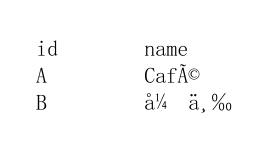
Use this guide when a CSV has the expected number of fields, but accented letters or names using another script look garbled. The surrounding ASCII text may still read normally. In the controlled example, the expected Café became Café and the Chinese name lost its readable form, even though both records were still under the name heading.
Start by checking a known value against the trusted source. This helps distinguish malformed text from a legitimate spelling or an unfamiliar name. When delimiter or quotation issues also affect the grid, verify the characters first and then check that each value lands under the correct heading. The concrete test below uses matching record keys so you can tell whether a name was decoded correctly and kept on the right row.
Why it happens
An encoding tells the reader how to interpret a file’s bytes as characters. A UTF-8 file can be read with a different code page and still produce readable ASCII around broken characters. A header with ordinary English letters can survive the wrong choice, which makes the file look structurally usable until you read a name. The bytes of the original can still be sound at that point. Decoding them correctly gives you the intended characters again.
Before you begin
Use unicode-names.csv from the sample list. It has fields id and name and two data records. The A record is Café, and the B record is 张三. The source was written as UTF-8 without a byte order mark. unicode-wrong-1252.csv is the text produced when the same original bytes were read as Windows-1252 and the damaged result was saved. Keep those two inputs separate, because the damaged copy is useful only as evidence of the fault.
The two corrected downloads start from the clean original. One adds a UTF-8 BOM and keeps the CSV content otherwise unchanged. The other writes the same decoded text as UTF-16 little endian with its encoding marker. Both corrected copies use comma separation and retain the id and name fields. The UTF-16 sample uses a text filename to exercise the explicit delimited import route.
Steps
Choose a reliable source and mark expected values.
Copy the raw CSV before opening or resaving it in a spreadsheet. Find a record with an accent and one with characters outside the simple English alphabet that you can check using trusted information. For the exercise, use A and B to pair the expected names with their rows. Write down the header and the order you expect to see.
- If you have several exports of the same data, keep the one that came most directly from the producer.
- A spreadsheet copy may already contain changed text.
- If your raw file is sound, you can choose a new decoding without modifying that original.
- This distinction matters when the only remaining copy has already been exported after a bad read.
Reproduce the encoding failure in a controlled read.
In the lab, PowerShell’s Windows code-page decoder read the original UTF-8 bytes as Windows-1252. We saved those incorrectly decoded strings as a control file and opened it in WPS to check the actual cells. A still identifies the first record. Its name is Café. B still identifies the second record, whose encoded-looking text is å¼ ä¸‰ in the broken worksheet.
- Read the captured values or open the damaged comparison copy.
- The header and record count are still correct.
- The names differ in both rows.
- This means you should choose a decoder from the original bytes instead of splitting the column or editing isolated letters blindly.
- An application that automatically detects UTF-8 may correctly open the source by default.
- The faulty branch in this lab deliberately uses the wrong decoder.
Try the UTF-8 BOM route from the verified original.
Open the original with the correct UTF-8 decoder and save a new copy as UTF-8 with a byte order mark. The mark gives an opener a signal about character encoding at the start of the file. The actual text and comma-separated fields should stay the same. Use unicode-with-bom.csv to compare the intended result or to test how your own program handles it.
- We opened that marked CSV directly in WPS. Both names came back exactly as recorded in the source. Microsoft also documents normal opening in Excel for a UTF-8 CSV that carries a BOM. For an unmarked file, Excel supports explicit text import. Confirm these choices with the actual receiving application, especially if it requires a particular encoding or marker. Excel UTF-8 CSV guidance
Try a separate re-encoding route when the receiving workflow calls for it.
Read the original as UTF-8 and write a new text copy in the target Unicode encoding. For this trial we encoded the same text as UTF-16 little endian with a matching BOM. Keep the separator choice separate. The new encoding changes how characters are represented as bytes, while the commas retain the same role in the decoded text.
- txt** through the delimited text importer.
- Set the source encoding to the matching UTF-16 variant and use Comma.
- Inspect the two-column preview before completing the import.
- The measured WPS import produced Café and 张三 again under name.
- If another system requests UTF-8 instead, check its stated requirements and use the verified UTF-8 route rather than assuming one encoding suits every receiver.
Verify the saved result and choose the copy to deliver.
Read each affected value in the actual receiving grid. Match the name to its id and compare both strings with the verified raw source. In the exercise both corrected files produce the exact header and the same two records. They encode the text with different bytes, so use decoded field equality to compare them. Use a checksum to identify one particular saved sample.
- Hold back the damaged comparison copy when sending the fix.
- Open the exact attachment or exported file one more time with the intended settings.
- If you are agreeing an exchange format with someone else, record the chosen delimiter and character encoding so they can repeat the import.
- This helps when an automatic guess behaves differently on the receiver’s system.
Check your result
For the test, compare the recorded cells under name. The first corrected row should read Café with the accent present. The second should read 张三 in that order. Confirm both are in the original A and B records and that id and name are separate columns. In the baseline fault, both string comparisons fail. In the marked UTF-8 and UTF-16 imports, both comparisons pass.
If the values are still wrong, return to the earliest original and verify how it was decoded. A marker added to a file containing already damaged text will describe those damaged characters’ current encoding, so check the source text before adding it. Open the wrong-decoding control alongside the corrected copies to see that a well-formed file can still contain the wrong names.
| Record | Wrong decoder | UTF-8 BOM | UTF-16 LE |
|---|---|---|---|
| A | Café | Café | Café |
| B | å¼ ä¸‰ | 张三 | 张三 |
Common mistakes
Saving the garbled worksheet over the original. Keep the raw export and reopen those original bytes with the proper decoder. Compare at least one value from each affected script.
Changing the separator to address broken characters. Check fields and characters separately. The failure control has the expected columns and the wrong text.
Adding a BOM to the already damaged text. Start from the verified original and confirm the decoded text before writing the corrected file.
Choosing a new encoding without checking the receiver. Reopen the exact saved copy in the destination’s workflow and verify its original field values.
Limitations
The samples show one deliberately incorrect code-page read and two successful repairs from known original bytes. When the original data is missing, recover a trusted source or independently verify the intended text before making corrections. Import options and automatic detection depend on the application and its configuration.
Test record
Tested on 2026-11-23 with WPS Spreadsheets 12.1.0.29161 under Windows PowerShell 5.1.22621.2428. Reading the original bytes as Windows-1252 in PowerShell damaged both names. WPS reopened each repair with the same row keys and the exact original names.
The measurement record lists the local outputs and their SHA-256 digests.
Tested in
Questions
Can a file contain readable headers and broken names?
Yes. The header and record keys in this example survived the wrong read. The name values changed. Compare values that include the kinds of characters your export needs to carry.
Does adding a BOM change the names?
A correctly written UTF-8 BOM signals the decoder at the start of the file. The test reads the same names after adding it to a correctly decoded UTF-8 copy. Reopen the file to confirm this in your destination.
Will changing a filename convert the text encoding?
Use an actual text encoding operation and verify the result. The example uses a text suffix to reach the explicit importer, and separately writes the bytes as UTF-16 little endian.
Do I compare bytes or characters when both fixes work?
Compare decoded fields for equivalent content across encodings. Compare digests when confirming that a particular download matches the exact byte sequence listed in the measurement record.