Find the small mistakes that break a CSV
Inspect a small failing export for delimiter, field count, quoting, header and encoding errors.
Keep the original CSV, make a small working copy with the header and a failing record, and open that copy as plain text so you can see the separators and quotation marks the importer receives. Set the separator and encoding from the source, then repair the first mismatch the preview exposes, such as a spare field caused by a final comma or a quote inside a quoted title. Re-import the working copy and check that its header count, record count, and values such as leading zeros and accented text match what you intended to send.
What to look for
Use this guide when a CSV opens with merged columns, reports more or fewer fields than the header, stops at a quote, or shows unreadable characters. These symptoms call for different checks. A separator determines where fields start and end. Quoting determines whether a separator or line break belongs inside a value. Encoding determines how the file’s bytes become characters.
Start with the error that appears first. If the importer rejects the file as unreadable, resolve the encoding before examining any guessed table layout. If recognizable text imports under the wrong headings, test the separator and inspect the first reported row. If only a record with a natural-language title fails, compare it with a nearby row that has simpler text. Keep the failed copy around until a corrected one gives the expected preview.
Why it happens
A readable table in a spreadsheet can hide the details that a CSV importer relies on. Some exports use semicolons so that a decimal comma stays inside a price. A trailing comma in a comma-delimited line adds another field. A quotation mark inside a quoted field needs to be doubled. A character saved with Windows-1252 can be rejected when those same bytes are decoded as UTF-8. A successful repair preserves the intended field values while giving the importer the right separators, quoting and text encoding.
Before you begin
Use the supplied files individually in the tool linked at the end. The intended table in semicolon-export.csv has one data row and three columns named name, price and code. malformed-quotes.csv has a one-row example with the two headings title and code. extra-field.csv is intended to have one row and three columns under name, region and code. windows-1252.csv has one row under name and code. Each repaired sample keeps the identifier 001.
Keep each source and its repair in separate files so you can compare them in a plain text editor. Identify the field that proves the repair worked for each case. For the semicolon file, use the price 12,50. For the quote file, use a title containing literal quotation marks. For the extra-field sample, confirm that the row ends with the code. For the encoding sample, use the spelling Café, including the accent.
Steps
Reproduce the separator problem with the small input.
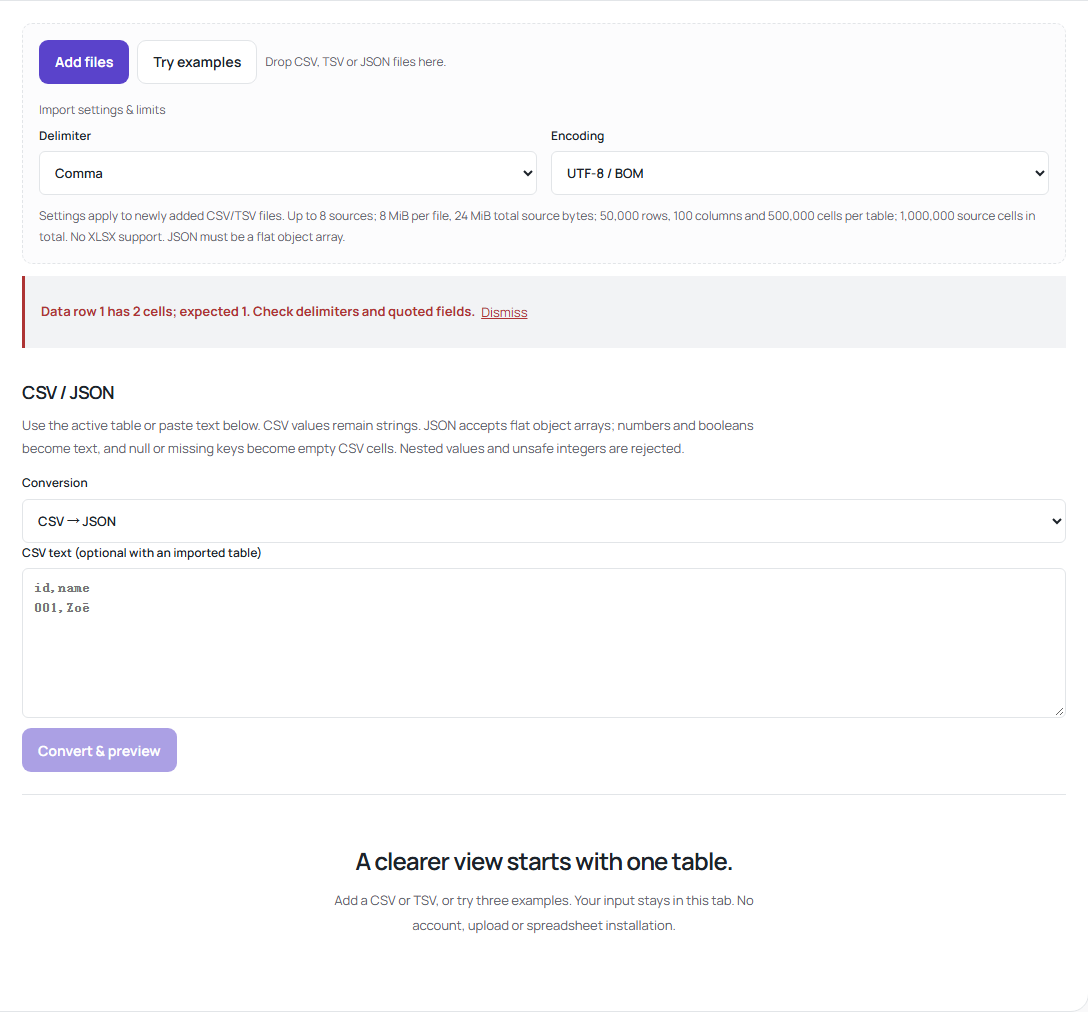
Open Import settings & limits and choose Comma, then add semicolon-export.csv. The header appears to the parser as one field because the header contains semicolons. The sample row contains a comma inside the price, so the tool reports that data row one has two cells where it expected one. That combination of counts is evidence about which characters the importer treated as separators.
- Choose Semicolon in Delimiter and add the same file again.
- Check that the headings are name, price and code and that the single data row contains Sample, the complete text 12,50, and 001.
- If you need a comma-delimited delivery copy, select Convert & preview using the imported table, choose CSV as the download format, and save the full table.
- csv** has quoted cells and can be re-imported with Comma while retaining the decimal comma in the price.
Repair quotes without changing the intended text.
Open malformed-quotes.csv in a text editor. Its title is enclosed in double quotes, and the separate quotes around hello have been entered singly. With the sample settings, adding it to the tool stops the import and reports unexpected text after a closing quote. After the quote in front of hello, the parser expected the field to end, so it sees the next letter as unexpected.
- Double the quotation marks inside the title and keep one enclosing quote at each end of the field.
- csv reads “The ““hello”” example”,001.
- Put the separating comma immediately after the closing quote.
- Re-import the repaired file and inspect the title cell.
- It should contain The “hello” example, while the separate code cell still shows 001.
- The doubled marks are how the file represents a single literal mark at each position.
Compare the field count with the header.
Open extra-field.csv and compare the three headings with the failing record. The original line reads Sample,Europe,001, with one more comma after the code. The tool reports four cells for data row one and expects three. Check what the extra empty cell is supposed to represent before removing a separator.
- csv.
- Import it and confirm three cells: Sample, Europe and 001.
- A trailing separator is appropriate when it separates an intentionally empty last value from the preceding field.
- In a separate check, Sample,Europe, parsed as three fields because the code column was meant to be empty.
- Use the header and the requested values to decide which interpretation matches your file.
Decode the original bytes, then save a separately encoded copy.
Add windows-1252.csv with the default UTF-8 / BOM encoding. The import fails to decode the accented name. Choose Windows-1252 in the Encoding list and add the same original file again. Inspect the two cells for Café and 001. In a file that was already saved with damaged characters, return to an earlier copy or the application that produced it before attempting another export.
- Select Convert & preview on the decoded table in the converter, switch Download format to CSV, and download the result.
- csv with UTF-8 selected and check the same name and code.
- Changing the input settings prepares the next import.
- Generating a new preview is the step that enables the download of the corrected table in the converter.
Check header names before scaling up.
Use the result preview to read each header as plain text. Trim accidental spaces in a working copy, check that every heading has a name and give different fields different names. In the extra diagnostic trial, name and a space-prefixed name became the same name after trimming. The parser rejected the duplicate.
- Once a small copy opens cleanly, apply the same repair to the relevant part of your source.
- Compare another record that exercises the same issue before processing the full file.
- For example, check a second accented value if your actual problem was encoding, or a different quoted value if the failure was punctuation.
- Then reopen the final file with the receiving settings.
- A corrected test case identifies how to fix one class of failure.
- Inspect other rows that the full import reports separately.
Check your result
Use the corrected files to check the parser’s response, then inspect the actual saved output if you created one. Start by confirming the intended headings. Each practice repair yields one data record. The corrected separator and extra-field cases have three columns each, and the quote and encoding cases each have two. The code 001 survives in every case. Verify each distinctive value in the table below so you can tell whether a repair merely suppresses an error or actually recovers the field as intended.
For the re-encoded sample, open it explicitly as UTF-8 and check that Café is readable. For the normalized delimiter sample, open it using Comma and confirm that 12,50 occupies a single cell. The local run reopened both downloaded files and checked their values. To check the exact sample bytes, compare a saved download with the SHA-256 entry in the test record. For your own file, compare parsed fields with the source expectations and account for intentional changes to quoting or encoding.
| Case | Data rows | Columns | Verified values |
|---|---|---|---|
| Delimiter | 1 | 3 | Sample / 12,50 / 001 |
| Quotes | 1 | 2 | The "hello" example / 001 |
| Extra field | 1 | 3 | Sample / Europe / 001 |
| Encoding | 1 | 2 | Café / 001 |
Common mistakes
Choosing Comma from the file extension. Inspect the header in plain text. In the delimiter trial, the wrong setting treated the semicolon header as one field and split the price.
Removing punctuation from the value to satisfy the parser. Keep the intended text and use its escaping rules. The repaired title kept both literal marks around hello.
Deleting every trailing comma. Compare the intended field count and position of any blank cell with the header. The extra-field case and the intentionally blank final code have different meanings.
Changing encoding and expecting a new download right away. Re-add the original bytes using that encoding, confirm the decoded preview, then select Convert & preview before downloading the corrected CSV.
Limitations
The samples isolate separator, quoting, field count and encoding errors. A large export can combine several of them. After each change, use the error and the actual field values to choose the next check. Review the receiving system’s own column and type requirements separately.
Test record
On 2026-11-23, we generated and verified the synthetic samples with Veylunex Data Workspace 1.0.0 under Node.js v26.4.0. We repeated the walkthrough in Google Chrome 157.0.8103.80 using a local site build.
We reproduced the field count, quote and decoding failures, then opened each repaired sample. The checks retained the decimal comma, the literal quotation marks, the leading zeros and the accent in Café.
The measurement record includes the inputs, output counts or values, error messages, byte sizes and SHA-256 checksums for the public samples.
Tested in
Questions
How can I tell that the price comma belongs to a value?
Read the header and row together. The sample header separates columns with semicolons. The characters 12,50 lie between the semicolons surrounding the price field, so they belong to one value when opened using the correct setting.
Can a value include a line break?
Yes, a correctly quoted value can span physical lines. The related CSV to JSON guide includes a measured example. Count parsed records and inspect the saved value when checking an export with multiline data.
Can I recover the original letters by resaving garbled text?
Start from the original bytes or obtain a fresh export. In the practice case, the same source bytes gave a readable name after choosing their original encoding. Once the source itself has been changed, use the producer’s original data to verify the expected characters.
Why is a header duplicate reported when the names look different?
Look for surrounding whitespace. The parser trims header names, so name and a name with a leading space match. Give the columns distinct names that express what each field actually represents.